
debugging for LG Part 3

set up
This is yet another method to initiate debugging for LG. Again, we are assuming that you already have the Visual Studio/CLI apps previously set up and connected to the TV, that the app you want to test is installed on the LG TV, and that the LG is currently in dev mode.
Make sure your LG and PC are on the same network.
Deep Linking Test Tool
Go to https://webostv.developer.lge.com/develop/tools/deeplink-tool-installation and under the Download Deep Linking Test Tool section, download the correct zip file.
Right click the file in your downloads and extract all.
Launch the deep linking tester application by double clicking it.
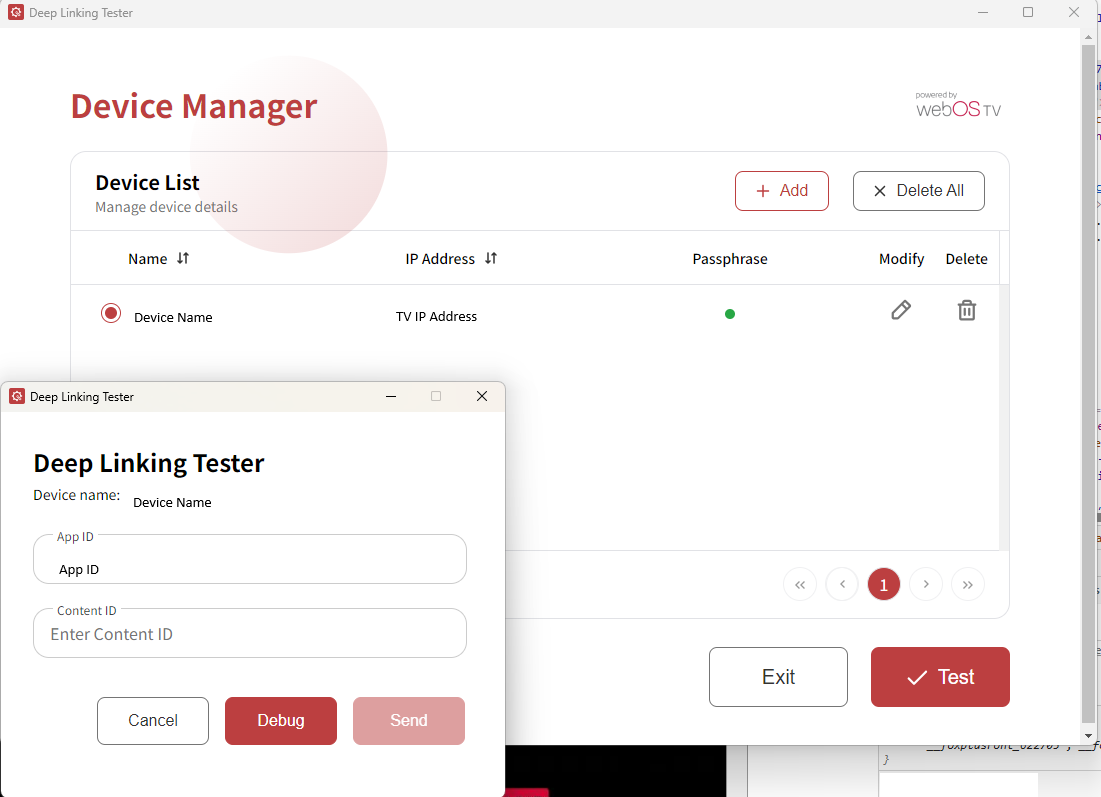
Now we can add our device by clicking the Add button at the top right.
Enter a name for your TV, the IP address of your TV, and the passphrase of your TV (ensure you have key server enabled in the developer tools app on the TV while doing this).
Your TV will appear in the device list now.
Click on the dot by the TV you want to test and click the Test button.
Enter the app ID of the app you want to test (you can find this either in the Visual Studio Code app in the known device section with the list of apps installed or by using the command ares-install -device (device name) -list in the CLI).
You can leave the content ID empty and click Debug.

Network Inspector
The debugging window will now open on your default internet browser.
Click on the Network tab.
Now we can see the network traffic.
If we right click anywhere in the calls we can Copy All as .HAR.
Open the notepad app on your PC and paste that copied info into it.
Click Save As and then save the file as a .HAR file.