
installing builds on vega os
enabling dev mode & Other prerequisites
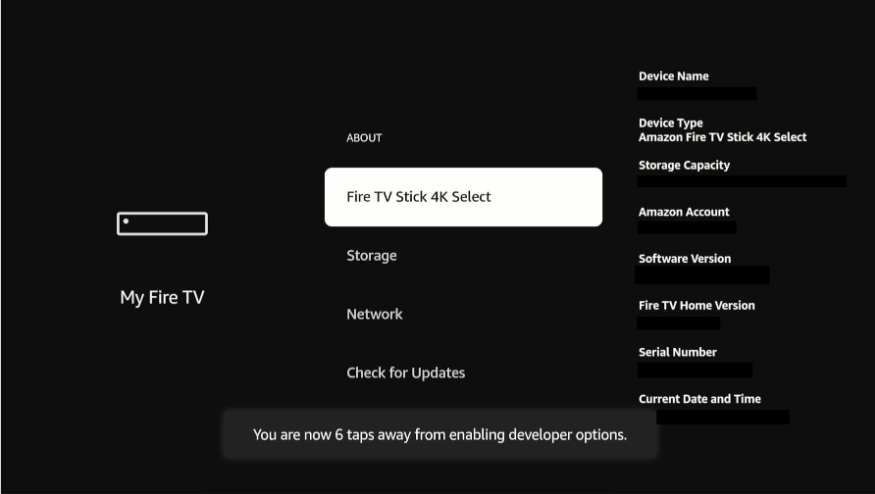
We need to enable Developer Options on our Vega OS device. Go to Settings then choose My Fire TV then select About and click Fire TV Stick 4K Select 7 times to see the Developer Options item in Settings. Go back and click on Developer Options and enable this setting. The device will restart.
We also need to make sure we have the Vega SDK installed on our computer. If we want to use the TCP/IP option, we will additionally need to have our computer and Vega OS device on the same network.
Connecting via USB
For this method, we actually need to plug the Vega OS device into the PC.
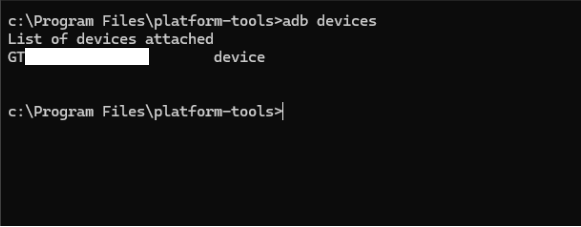
Open command prompt on your computer and point to where your platform-tools finder is.
Type in “adb devices” to make sure you’re connected.
Now enter “adb push (appname.vpkg) /tmp/”.
Follow this with “adb shell “vpm install /tmp/(appname/vpkg)””.
You should get a success message in command prompt that the app has been installed.
connecting via tcp/ip
For this method, we need to go into the Developer Options in settings and click on the USB item to switch it to TCP/IP. Once you confirm the switch, the device will restart.
Go into Settings again → My Fire TV → About → Network → take note of the IP address.
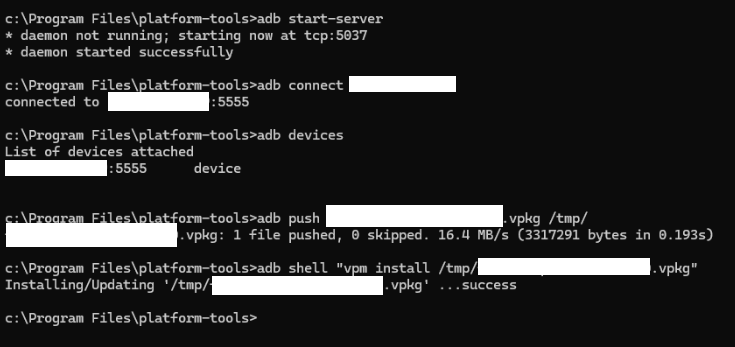
Now open command prompt on your PC and point to the platform-tools folder.
Type in “adb connect (vega os device ip address)”.
Type in “adb devices” to make sure you’re connected.
Now enter “adb push (appname.vpkg) /tmp/”.
Follow this with “adb shell “vpm install /tmp/(appname/vpkg)””.
You should get a success message in command prompt that the app has been installed.