
debugging for Xbox Part 3
Edge Inspect
We can actually use edge://inspect now to get network traffic right from the Xbox.
This requires previously having setup dev mode on the Xbox as well as having remote debugging enabled in the project’s code.
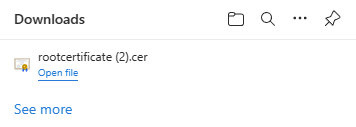
First, go to the remote access URL for the Xbox in Edge followed by /config/rootcertificate (ex. https://<System IP>:11443/config/rootcertificate) to download the rootcertificate.cer file.
Installing the Root Certificate
Open the rootcertificate.cer file and click on Install Certificate.
Select the Current User option and click Next.
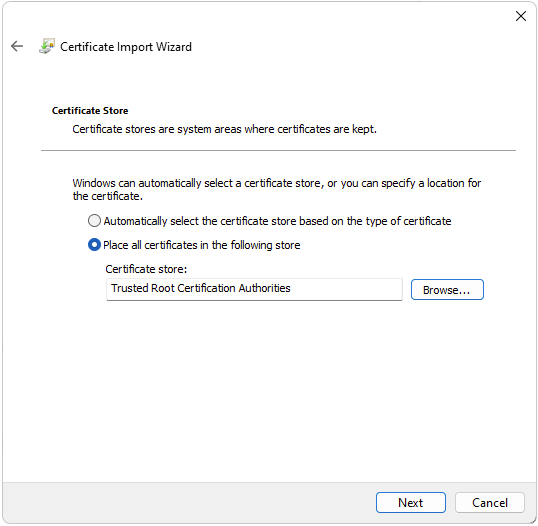
Click on Place all certificates in the following store then select Trusted Root Certification Authorities.
Click Next and then Yes on the security warning.
You will now have to close Edge and relaunch it.
Network Traffic
Go to the Xbox dashboard (ex. https://<System IP>:11443) to install your app and launch it.
Go to edge://inspect.
In the Connect to a remote Windows device box, enter the remote access URL for the Xbox (ex. https://<System IP>:11443) and click Connect to Device.
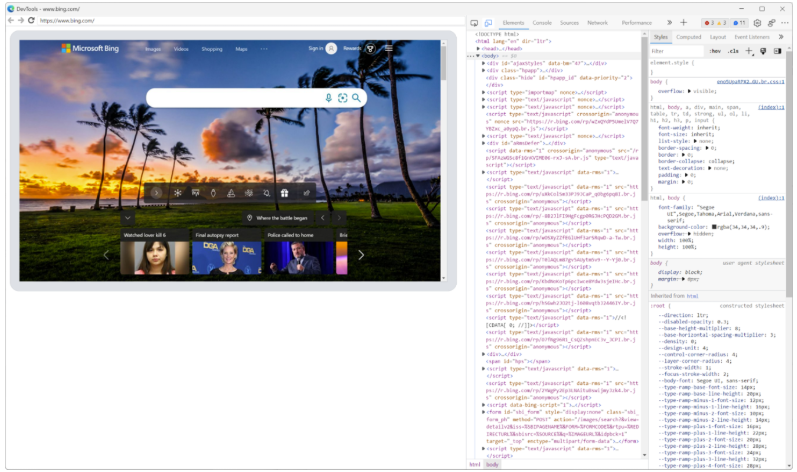
The Xbox device should appear now under Remote Target with an Inspect link - click on that.
Now we will be able to see the traffic show up in the network tab of the inspector and we can save our logs the same way we do for the other platforms using chrome://inspect.